Flip Image Horizontally — Mirror a Photo Left to Right
Swap left and right to fix mirrored selfies, backwards text, and print artwork. The horizontal direction is selected for you below.
Choose imagesFlip an Image Horizontally Without an App
or paste with Ctrl+V / ⌘V
Up to 30 images · 20 MB each · 16 megapixelsWhat a horizontal flip changes
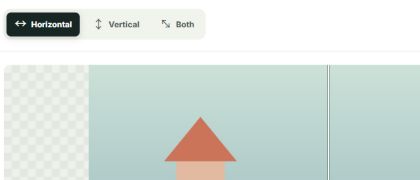
A horizontal flip exchanges the left and right sides of every pixel. The top stays at the top, the image dimensions stay the same, and text appears reversed. It is the direction people usually mean when they ask to mirror a photo.
Use it to correct a front-camera selfie, check a composition from the opposite direction, or prepare artwork that must print in reverse. If your subject needs to move from top to bottom instead, choose Vertical in the tool.
How to flip an image in 3 steps

Add your image
Add the selfie, sign, or design you want to mirror. It stays in your browser while you work.
Choose a direction
Choose Horizontal to exchange the left and right sides without changing the image dimensions.

Compare and download
Check that faces or reversed lettering read the way you want, then save the clean image.
Formats and limits, clearly stated
Add JPG, PNG, WebP, GIF, HEIC, AVIF, BMP, or TIFF images up to 20 MB and 16 megapixels. JPG, PNG, and still WebP keep their format when supported; animated GIF keeps its frames. Other accepted formats export as PNG.
Your images never leave your device
Your selected photo stays in your browser while you mirror it. The preview and flipped download are created on your device; the image file is not uploaded to our server.
✳What people flip images for
Correct a mirrored selfie · Make lettering readable in a photo · Reverse a logo or layout · Create a left-right meme · Mirror artwork before printing.
A horizontal flip mirrors left and right
Horizontal flipping reflects an image across a vertical line through its center. It keeps the same width and height; a rotation turns the whole image instead.
See the full flip and rotation comparisonFlip on any device
For a quick left-right correction, open this tool on your phone or computer. iPhone Photos, Windows Paint, Mac Preview, Photoshop, and Canva also offer horizontal flip controls; our guide links to each set of steps.
How to flipMore free image tools
Compare a left-to-right mirror with a vertical flip or a flip in both directions.
Frequently asked questions
How do I flip an image horizontally?
Choose Horizontal to swap the left and right sides, then download the mirrored image.
How do I mirror flip a photo online?
Add your photo, select Horizontal, review the preview, and download it. The edit runs in your browser.
How can I unmirror a selfie?
A horizontal flip reverses the mirrored preview so your face and surroundings read in the opposite direction.
Can a horizontal flip fix backwards text?
Yes. Swapping left and right can make signs, shirts, labels, and other reversed text readable again.
Does flipping horizontally change image size?
No. A horizontal flip changes which side is on the left, not the image dimensions.
Can I flip a photo horizontally on my phone?
Yes. Open this page in your phone browser, add a photo, choose Horizontal, and download the result.
Will a horizontal flip reverse text?
It swaps the full image left to right, so text that was readable becomes mirrored and mirrored text becomes readable.